API keys & integrations
Most people never need this page — and that's fine. But if you want to connect Initiative to a script, another tool, or an AI assistant, API keys are how you do it safely. An API key is a long-lived credential that lets software act on your behalf, with limits you choose.
Treat an API key like a password
Anyone with your key can do what the key allows, as you. Don't paste keys into public places, and delete any key you no longer use.
Creating a key
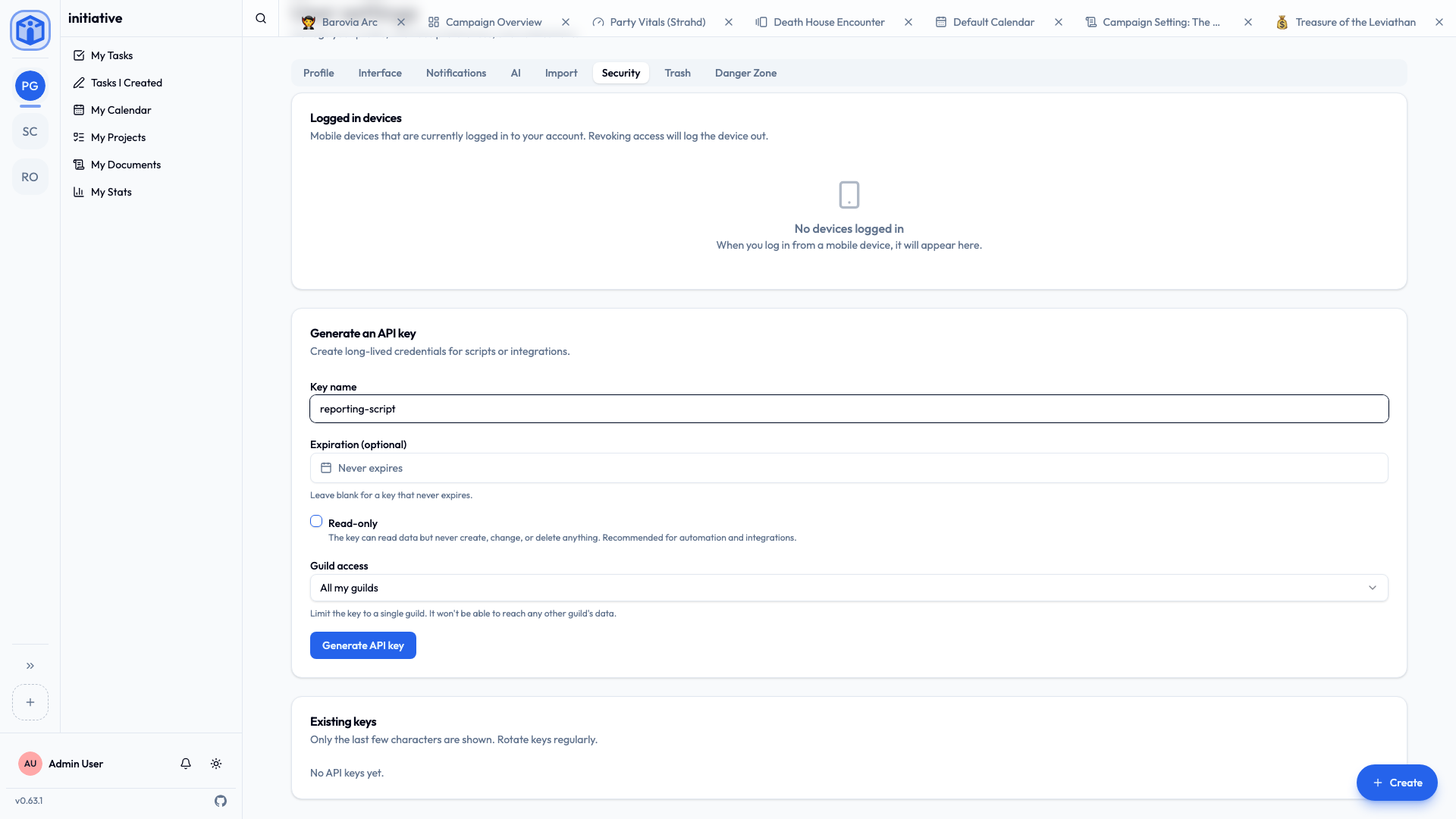
- Open User settings → Security.
- Under Generate an API key, give it a clear name (for example,
weekly-report-script) so you'll remember what it's for. - Choose its limits (see below).
- Generate it, and copy it right away — it's shown only once. If you lose it, just delete it and make a new one.
Choosing safe limits
The key options exist to limit the damage if a key is ever exposed. Use the tightest settings that still do the job:
| Option | What it does | Recommendation |
|---|---|---|
| Read-only | The key can read data but never create, change, or delete anything. | Turn this on unless you specifically need to make changes. |
| Guild access | Limit the key to a single guild, instead of all your guilds. | Pin it to the one guild it needs. |
| Expiration | The key stops working after a date. | Set one for anything temporary. Leave blank only for keys you'll actively manage. |
A read-only key pinned to a single guild is the safest default — it can't change anything, and it can't reach any other group's data.
Managing keys
The Existing keys list shows each key's name, a short prefix (never the full key), its scope, when it was last used, and when it expires. Delete any key to revoke it immediately. Resetting your password also revokes your keys, so a compromised account can be locked down fast.
Connecting an AI assistant (MCP)
Initiative can expose a small, safe surface to AI assistants (like Claude) through the Model Context Protocol (MCP). This lets an assistant do things like "list my projects" or "add a task to the Auth project" on your behalf — using your API key, and bound by exactly the same access rules as everything else.
A few important properties:
- It's off unless your administrator enables it on the server.
- Every action runs as you, scoped by your key. An assistant can only ever reach data you could reach.
- The surface is deliberately small and read-leaning — a handful of read actions for any key, and only a few write actions (create/edit/move a task, add a comment) for a full-access key. A read-only key can't write at all.
Use a read-only, single-guild key for AI assistants
For most uses, a read-only key pinned to one guild is the right call. Only use a full-access key if you actually want the assistant to make changes — and each change is confirmed in the assistant before it runs.
For the technically minded — connecting a client
With MCP enabled (an administrator sets ENABLE_MCP=true), the server is available at <your-server>/api/v1/mcp/. Register it with your client using your API key as a bearer token, for example with Claude Code:
claude mcp add --transport http initiative \
  https://your-server/api/v1/mcp/ \
  --header "Authorization: Bearer ppk_your_key_here"
The exposed tools are route-backed: each call goes through the normal API with your authentication and the same row-level-security access rules, so there's no ambient privilege. Administrators can read more in Configuration.
Related
- Profile & preferences — the rest of your account.
- Security & privacy — how access is enforced.
- Configuration — for administrators enabling MCP.