Documents
A document is where your group writes things down — notes, plans, scripts, budgets — and keeps files. Documents live inside an initiative, and many of them can be edited by several people at the same time, live.
Kinds of document
When you create a document, you choose a type:
| Type | What it's for |
|---|---|
| Text document | A rich-text page — like a word processor — for notes, plans, and write-ups. |
| Spreadsheet | A grid of cells with formulas, for numbers, lists, and tables. |
| Whiteboard | A free-form visual canvas for sketching ideas and diagrams. |
| Smart link | An embedded view of something hosted elsewhere (a YouTube video, a shared file, and the like). |
| Upload | A file you upload — PDF, Word, Excel, PowerPoint, text, images, and more. |
File uploads have a size limit
Uploaded files can be up to 50 MB each. For very large files, link to them with a Smart link instead.
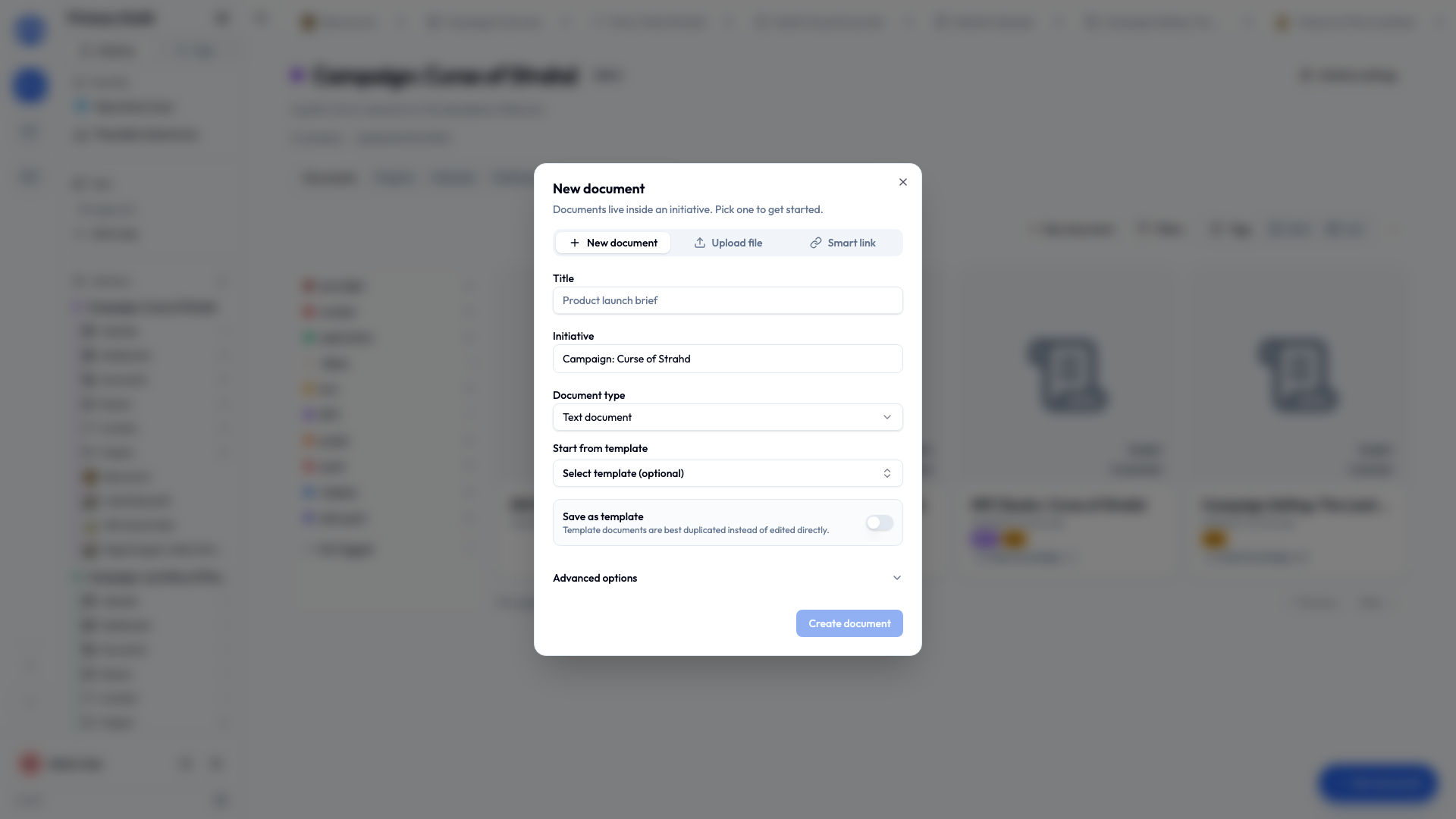
Creating a document
- In an initiative (or from My Documents), choose Create Document.
- Pick the document type.
- Give it a title and confirm the initiative it belongs to.
- Optionally start from a template.
- Start writing (or upload your file).
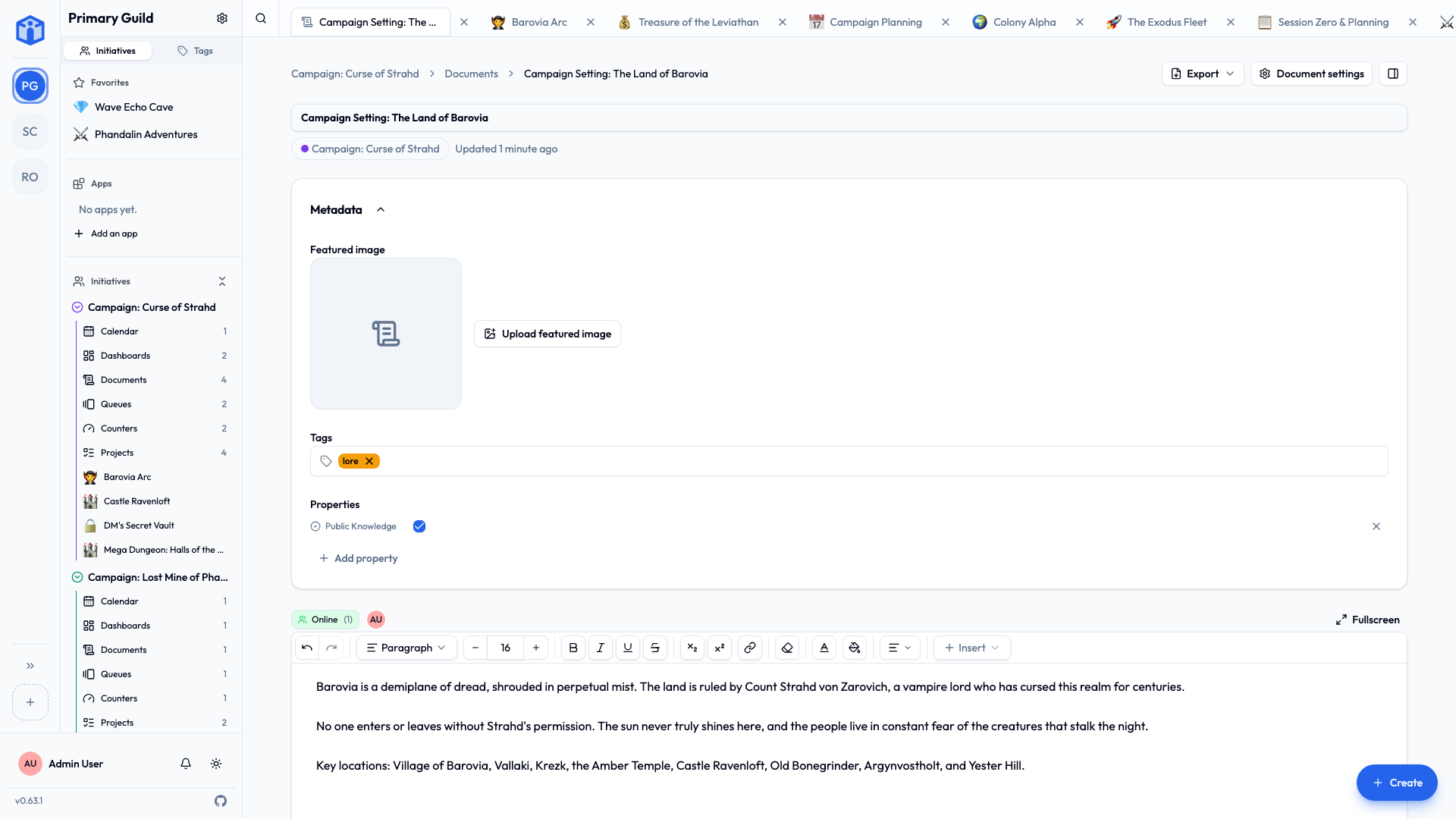
Writing a text document
The text editor has the tools you'd expect:
- Formatting — bold, italic, underline, strikethrough, superscript, subscript, and inline code.
- Blocks — headings, paragraphs, quotes, and code blocks.
- Lists — bulleted, numbered, and checklists.
- Alignment — left, center, right, justified.
- Insert — images, tables, a horizontal divider, and embedded videos.
- Undo / redo for when you change your mind.
Everything autosaves as you type, so there's no "save" button to remember.
Working in a spreadsheet
The spreadsheet supports the everyday essentials:
- Formulas like
SUM,AVERAGE,MIN,MAX,COUNT,IF, andROUND. - Formatting — fonts, colors, alignment, and number formats (plain, number, currency, percent, date).
- Freeze rows or columns so headers stay put as you scroll.
- Import and export as CSV or Excel (XLSX).
Sketching on a whiteboard
A whiteboard is a free-form canvas for the thinking that doesn't fit in a paragraph — a floor plan, a seating chart, a flow of who-does-what, boxes and arrows on a wall.
- Draw anything — shapes, arrows, freehand lines, text, and images, arranged however you like.
- Work on it together — everyone's pointer shows up live, labeled with their name, so you can point at the same thing at the same time.
- Go fullscreen when the canvas needs the whole window.
- Export as a picture — save a whiteboard as a PNG or SVG image to drop into a slide deck, an email, or a printout.
Whiteboards autosave like everything else, and they're shared, tagged, and commented on exactly like any other document.
Editing together, live
Documents are built for collaboration:
- Real-time editing — when two people open the same document, they see each other's changes appear as they happen.
- Autosave keeps everything current without anyone hitting save.
- Offline-friendly — if your connection drops, you can keep editing; your changes sync up when you're back online.
You'll see who else is here
When others are viewing or editing a document with you, Initiative shows who's present, so you won't accidentally talk over each other.
Comments and mentions
Open a document's Comments to discuss it without changing the content. You can reply to build a thread, and edit or delete your own comments.
To pull someone (or something) into the conversation, mention it by typing @:
@name— notify a person.@task,@doc,@project— link directly to a task, document, or project.
Mentioned people get a notification, so it's the right way to say "hey, take a look at this."
File documents and version history
For uploaded files, Initiative keeps a version history. When a file is updated, you can upload a new version while the older ones stay available, each marked with its date. That way you can always get back to an earlier copy.
Attaching documents to a project
A document can be attached to a project so the relevant reference sits right next to the work. From a project, choose Attach existing to link a document you've already made (or create a new one to attach).
Document settings
Open a document's settings for:
- Details — tags and metadata.
- Access — who can view, edit, or own it (see Sharing). Access levels are Viewer, Editor, and Owner.
- Advanced — save as a template, duplicate it, copy it to another initiative, or delete it.
Templates
Made a document layout you'll reuse — a meeting-notes format, a project brief? Save it as a template and start fresh copies from it any time. Templates are copied, not edited directly, so the original stays pristine.
Related
- Sharing projects & documents — control who sees each document.
- Tags — organize documents with labels.
- Your space — find all the documents that are yours.