Tags
Tags are labels you stick on things to group and find them. The same tag can sit on tasks, projects, documents, and events — so a tag like urgent, client-acme, or idea pulls together everything related, wherever it lives.
Adding a tag
Wherever you see an Add tags… box — on a task, project, document, or event:
- Start typing a tag name.
- Pick an existing tag from the list, or choose Create "your-tag" to make a new one on the spot.
That's it. The tag is attached, and it's now available to use on other things too.
Keep your tags few and meaningful
A handful of clear tags you use consistently beats dozens you use once. Think about how you'll want to find things later, and name tags for that.
Finding things by tag
- In Table views, filter by tag to narrow a busy list down to just what's labeled.
- The Tags area in the sidebar lists every tag in the guild.
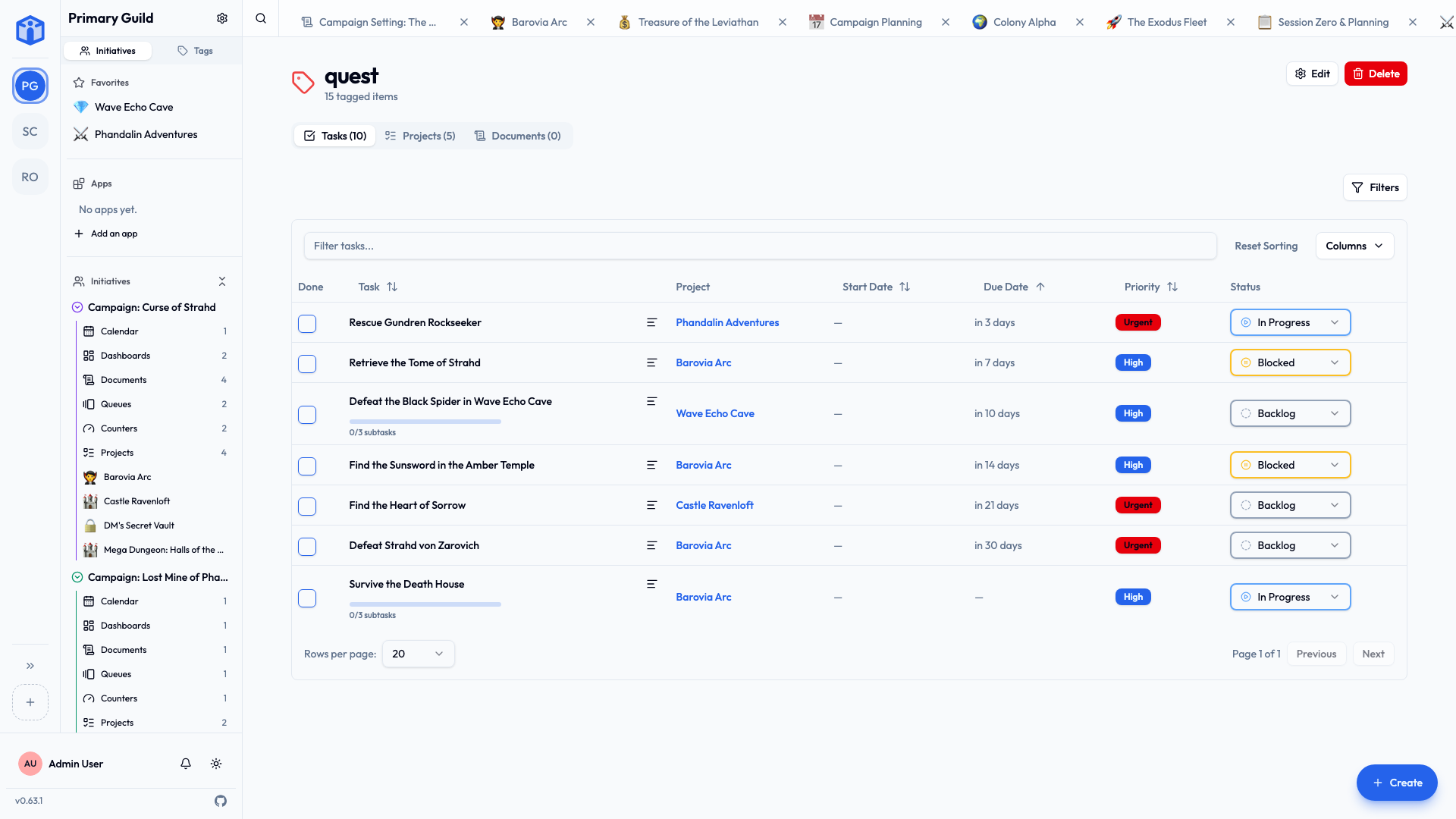
- Open a tag's detail page to see everything carrying it, split into Tasks, Projects, and Documents.
Managing tags
From a tag's detail page you can rename it (the change applies everywhere it's used) or delete it. Deleted tags go to the Trash, so an accidental deletion can be undone for a while.
You can also add or remove tags on many items at once — select several tasks and edit their tags together.
Related
- Projects & tasks — tagging and filtering tasks.
- Documents — tagging documents.