A quick tour
Let's walk through the screen so everything feels familiar. Don't worry about remembering it all — you'll learn it naturally as you go. Here's the lay of the land.
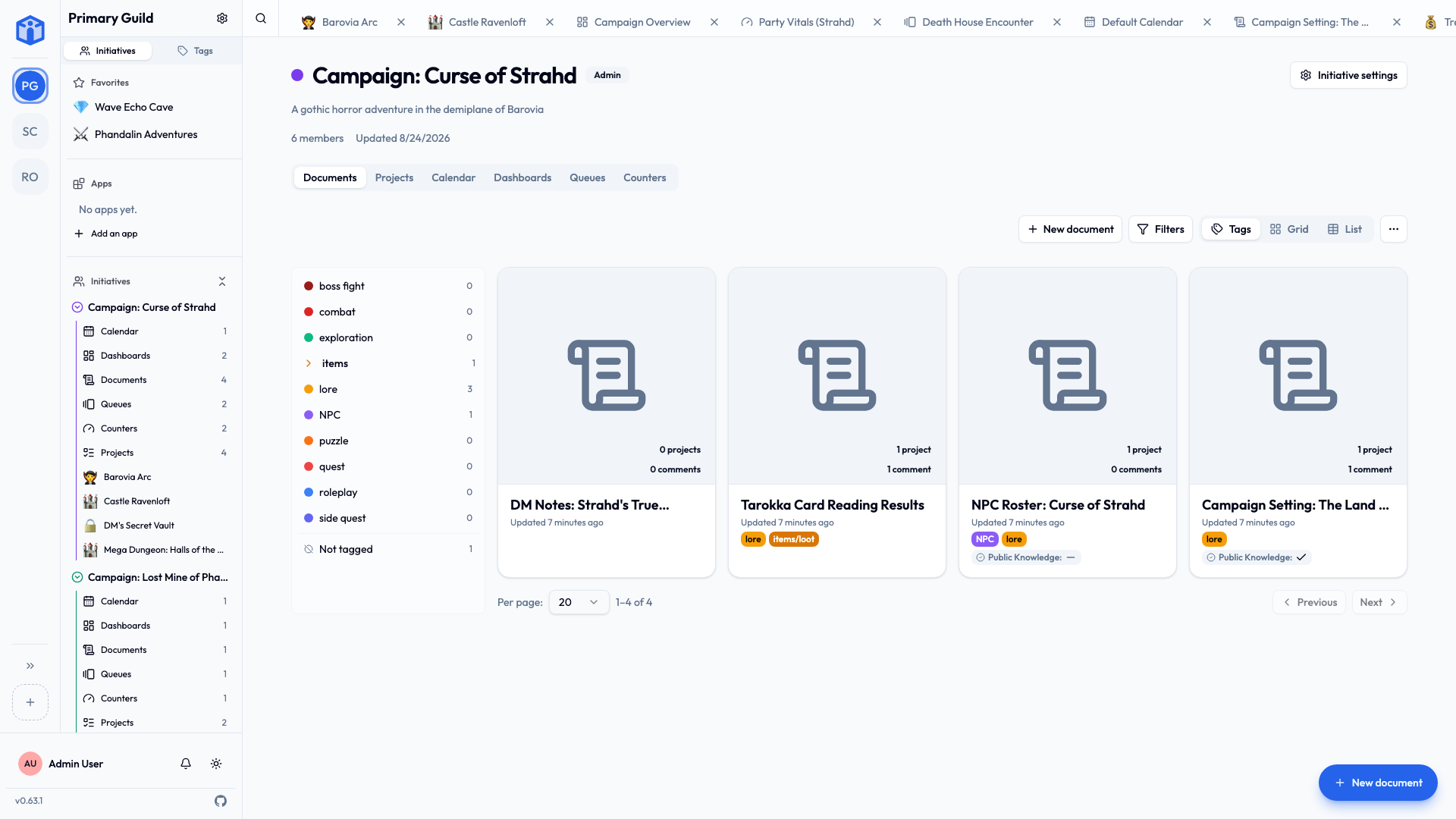
The guild rail (far-left edge)
Down the far-left edge of the screen is a narrow vertical strip of icons:
- At the top is the Initiative logo. Click it to reach your personal space — the things that are yours, pulled together from across every guild: My Tasks, Tasks I Created, My Projects, My Documents, My Calendar, and My Stats. See Your space.
- Below the logo is one icon for each guild you belong to. The highlighted icon is the guild you're in now; click another to switch. Opening a guild shows that guild's dashboard and fills the sidebar with its contents. (More on guilds in Your first guild.)
The sidebar (next to it)
When you're in a guild, the sidebar maps out that guild. You'll usually find:
- Initiatives — the heart of the workspace. Each one expands to show its projects and documents, and clicking an initiative's title opens that initiative's own dashboard. This is where most of your work lives.
- Tags and Favorites — quick ways to find things you've labeled or starred.
Collapse what you don't need
Initiatives expand and collapse, so you can keep the sidebar tidy. There's also a control to collapse all or expand all at once.
The bottom of the sidebar
Pinned to the bottom of the sidebar are your personal controls:
- Your name and avatar — opens your account menu, settings, and sign out.
- The light / dark theme toggle — switch the whole app between Light, Dark, or System (which follows your device's own setting). Set it once and forget it.
- Your notifications — a running list of everything you've been alerted to.
Below those, you'll see the app's version number and a link to the project's open-source code on GitHub.
The main area (in the middle)
Whatever you click in the sidebar opens here — a project board, a document, your task list, a settings page. It's where you actually do the work.
The tab bar (across the top)
As you open projects, tasks, and documents, Initiative keeps them as tabs along the top, like a web browser. Jump between recent things with a click, and close a tab when you're done with it. You can set how many recent items it keeps in User settings → Interface.
Search — the fastest way around
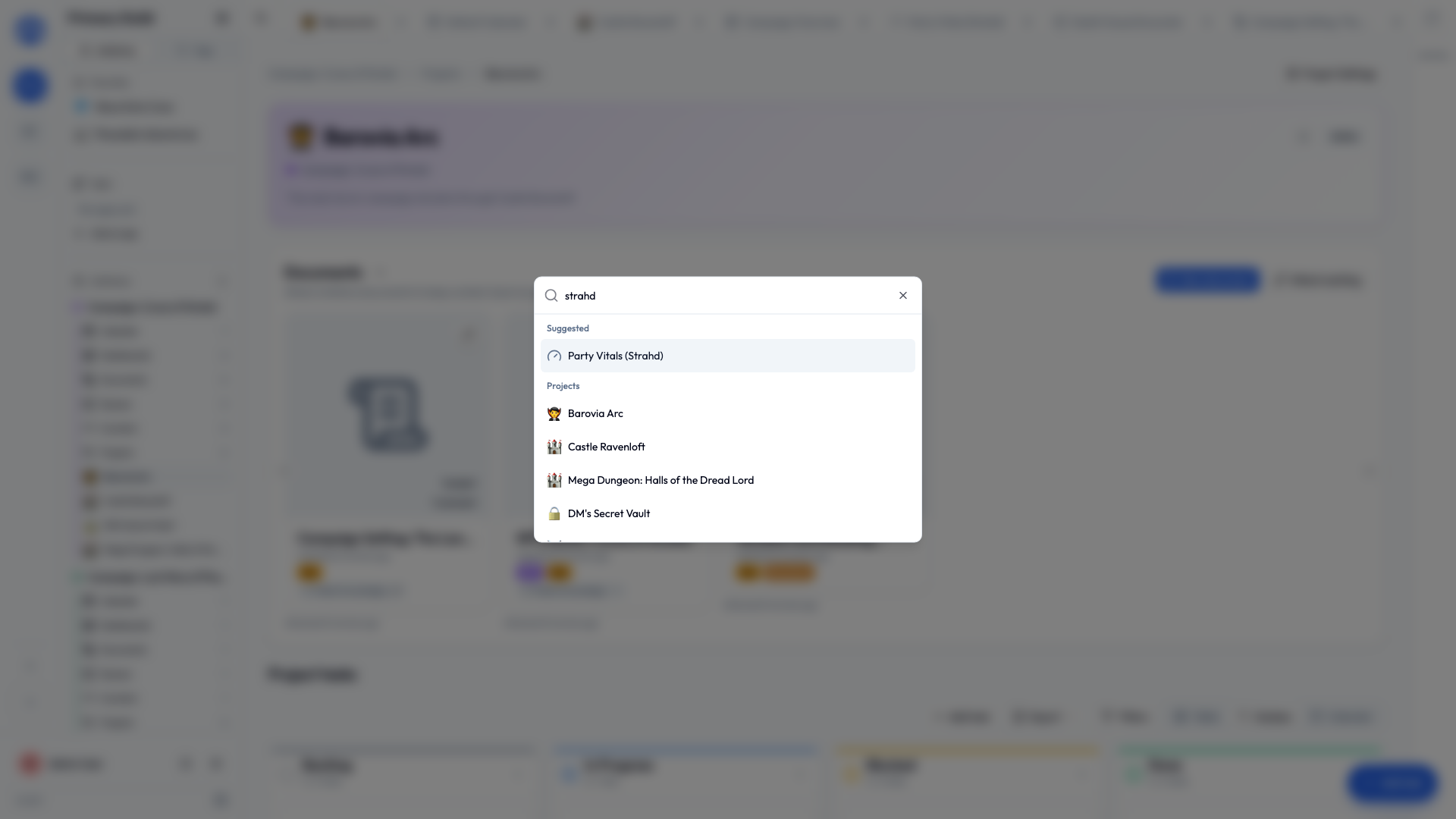
Press Cmd+K (Mac) or Ctrl+K (Windows/Linux) anywhere to open search. Start typing the name of a project, task, document, or page, and jump straight to it. On a phone, a three-finger tap opens the same thing.
Search is often quicker than clicking through the sidebar — it's worth getting into the habit. See Search & shortcuts.
Next
You know your way around. Let's get you into your group — join or create your first guild.