Signing in
Once you have an account, signing in takes a few seconds.
Sign in with email and password
- Open your group's Initiative web address.
- Enter your email and password.
- Click Sign in.
That's it — you land on your home screen. Initiative keeps you signed in on that device, so you won't have to log in every time.
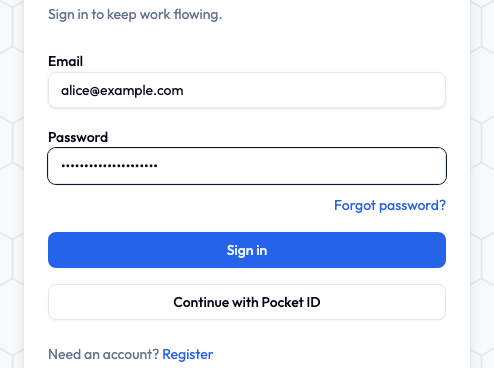
Sign in with single sign-on
If your organization uses single sign-on (SSO), you'll see a button such as Continue with Single Sign-On. Click it, sign in with your existing work or school account, and you're in. There's no separate Initiative password to remember.
Forgot your password?
No problem.
- On the sign-in screen, click Forgot password?
- Enter the email tied to your account.
- Check your inbox for a reset link and follow it.
- Choose a new password (at least 12 characters) and sign in.
If the email doesn't arrive within a few minutes, check your spam folder. Reset links expire after a while for safety, so if yours has gone stale, just request another.
Using the mobile app
The mobile app works a little differently the first time, because it needs to know which Initiative server to talk to.
- Open the app. You'll see a Connect to Server screen.
- Enter your group's Initiative web address (the same one you use in the browser).
- Sign in with your email and password, or single sign-on.
After that, the app remembers your server and keeps you signed in.
One account, many devices
You can be signed in on your laptop and your phone at the same time. To see and manage where you're signed in, open User settings → Security → Logged in devices, where you can sign out a device you no longer use.
Signing out
Click your name or avatar (bottom of the sidebar) and choose Sign out. On a shared or public computer, always sign out when you're done.
Next
Now let's get comfortable with the layout — take the quick tour.