Sharing projects & documents
This is the final, most precise layer of access: deciding who can see and edit a specific project or document. It works the same way for both, so once you've learned it for one, you know it for both.
The three access levels
When you share a project or document, you give each person (or role) one of three levels:
| Level | Can do |
|---|---|
| Viewer | Open and read it, but not change it. |
| Editor | Read and make changes. |
| Owner | Everything an editor can do, plus manage who else has access. |
Pick the lowest level that lets someone do their job. Most people only need Viewer or Editor.
Who you can share with
You can grant access to:
- A person — a specific member of the initiative.
- A role — everyone who has that initiative role, in one go. Share with the "Cast" role and every cast member gets access, including people you add to that role later.
Sharing with a role is the tidy choice when a whole group should have the same access — you set it once instead of adding people one at a time.
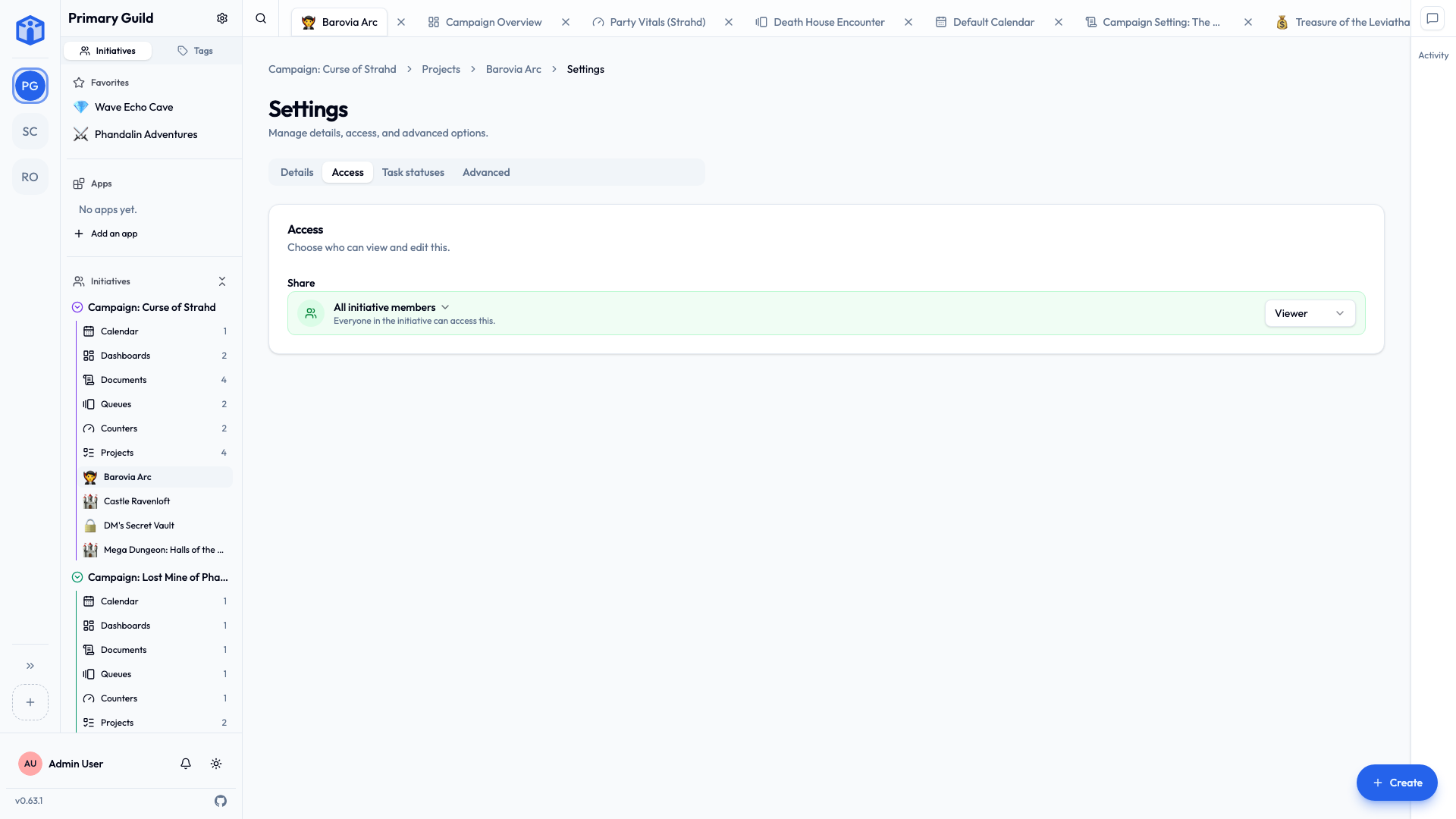
Open to everyone, or restricted
When you set up access, you generally choose between:
- All initiative members — everyone in the initiative can reach it. Good for things the whole team should see.
- Restricted — only the specific people and roles you add. Good for anything sensitive.
Start restricted when in doubt; you can always widen access later.
Changing access later
Open the Access tab in a project's or document's settings at any time to add people, change someone's level, or remove access. Changes apply immediately.
You can also edit access on several items at once: from a list view, select multiple documents, projects, queues, counters, or calendar events and update who can see or edit them in one step — handy when a new teammate joins a batch of work, or when someone leaves.
A couple of things to remember
- Initiative membership comes first. You can only share an item with someone who's already a member of its initiative. If they're not in the initiative, add them there first.
- Managers see everything. A member with the initiative's Manager role can open the item regardless of these per-item settings. That's intended — keep it in mind for truly private material.
- Guild admins see everything in their guild. Again by design, so someone can always administer the group.
For the technically minded — how item sharing is stored and checked
Per-item sharing is recorded as grants that name a project or document, a person or a role, and a level (view / edit / own). On every request, the database evaluates whether the current user satisfies the grant — directly, through a role they hold, through the initiative's Manager role, or as a guild admin — before any data is returned. Because this is enforced in the database alongside the guild and initiative boundaries, a project shared with "Editors" can't be reached by someone who has merely guessed its link. See How your data is kept separate.
Related
- Initiative roles — sharing with whole roles at once.
- Sharing & access overview — how this fits with the other layers.