Create your account
Your account is your personal identity in Initiative. You sign in with it, and it follows you across every group you belong to.
Step 1: Open Initiative
There are two common ways to arrive:
- You were sent an invite link. Click it. It opens Initiative and remembers which group you're joining. This is the easiest path — after you create your account, you're taken straight into that group.
- You have a web address. Someone shared the address of your group's Initiative (something like
initiative.yourteam.com). Open it in your browser.
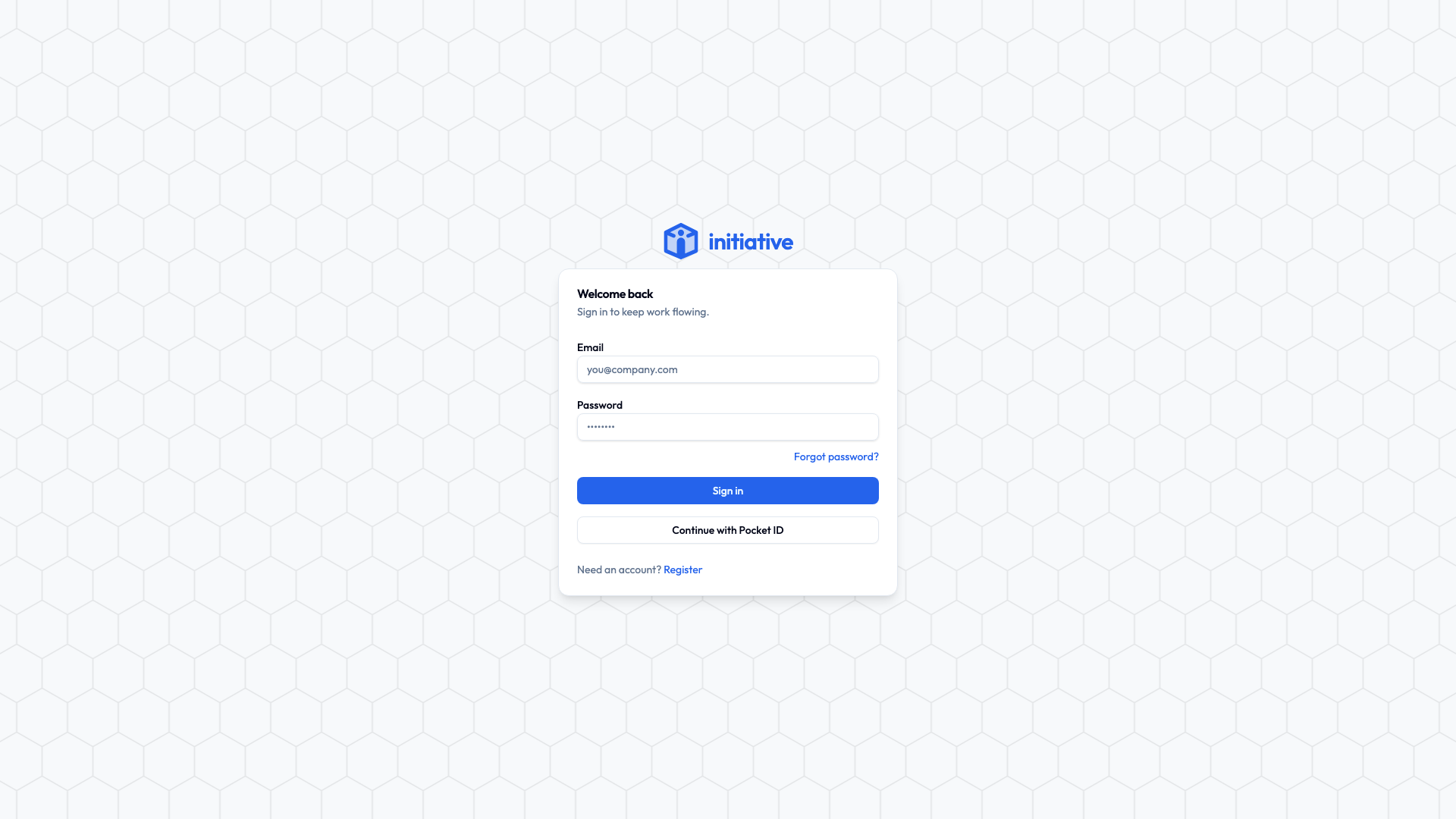
Step 2: Choose how to sign up
Look for Create account (or Sign up). You'll usually have one or two choices:
- Email and password — the standard way. Continue with Step 3 below.
- Single sign-on — if your organization set this up, you'll see a button like Continue with Single Sign-On. Click it and sign in with your existing work or school account. There's no separate password to create. You can skip the rest of this page.
Step 3: Fill in your details
For an email-and-password account, you'll enter:
| Field | What to put |
|---|---|
| Full name | Your name as you'd like teammates to see it. You can change it later. |
| A real address you can check. We send a confirmation link there. | |
| Password | At least 12 characters. Longer is stronger. |
| Confirm password | Type the same password again. |
You may also see a quick "I'm not a robot" check. That's normal — it keeps automated sign-ups out.
Pick a strong password you don't use elsewhere
A short sentence you'll remember — like four random words strung together — is both strong and easy to recall. A password manager is even better.
Step 4: Confirm your email
After you sign up, one of a few things happens depending on how your group set things up:
- "Check your inbox to verify your email." Open the email we sent and click the link. Then you can sign in. (No email after a few minutes? Check your spam folder.)
- "Pending approval from an administrator." Your group reviews new sign-ups by hand. You'll be able to sign in once someone approves you.
- You're let straight in. Some groups automatically approve people whose email matches the organization (for example, anyone with a
@yourteam.comaddress).
For the technically minded — how sign-up is gated
Three independent settings control who can register, and an administrator chooses the combination:
- Public registration can be turned off entirely, so only people with an invite link can join.
- An allow-list of email domains can auto-approve sign-ups from trusted domains; everyone else waits for manual approval.
- Email verification confirms the address belongs to the person signing up.
The very first person to register on a brand-new server automatically becomes the platform owner (the top administrator). See Platform roles.
Next
You have an account. Time to sign in.