Working with guilds
A guild is your group's workspace — one separate space for one group of people. This guide covers moving between guilds, inviting people, and (if you're an administrator) looking after one.
If you haven't joined or created a guild yet, start with Your first guild.
Switching between guilds
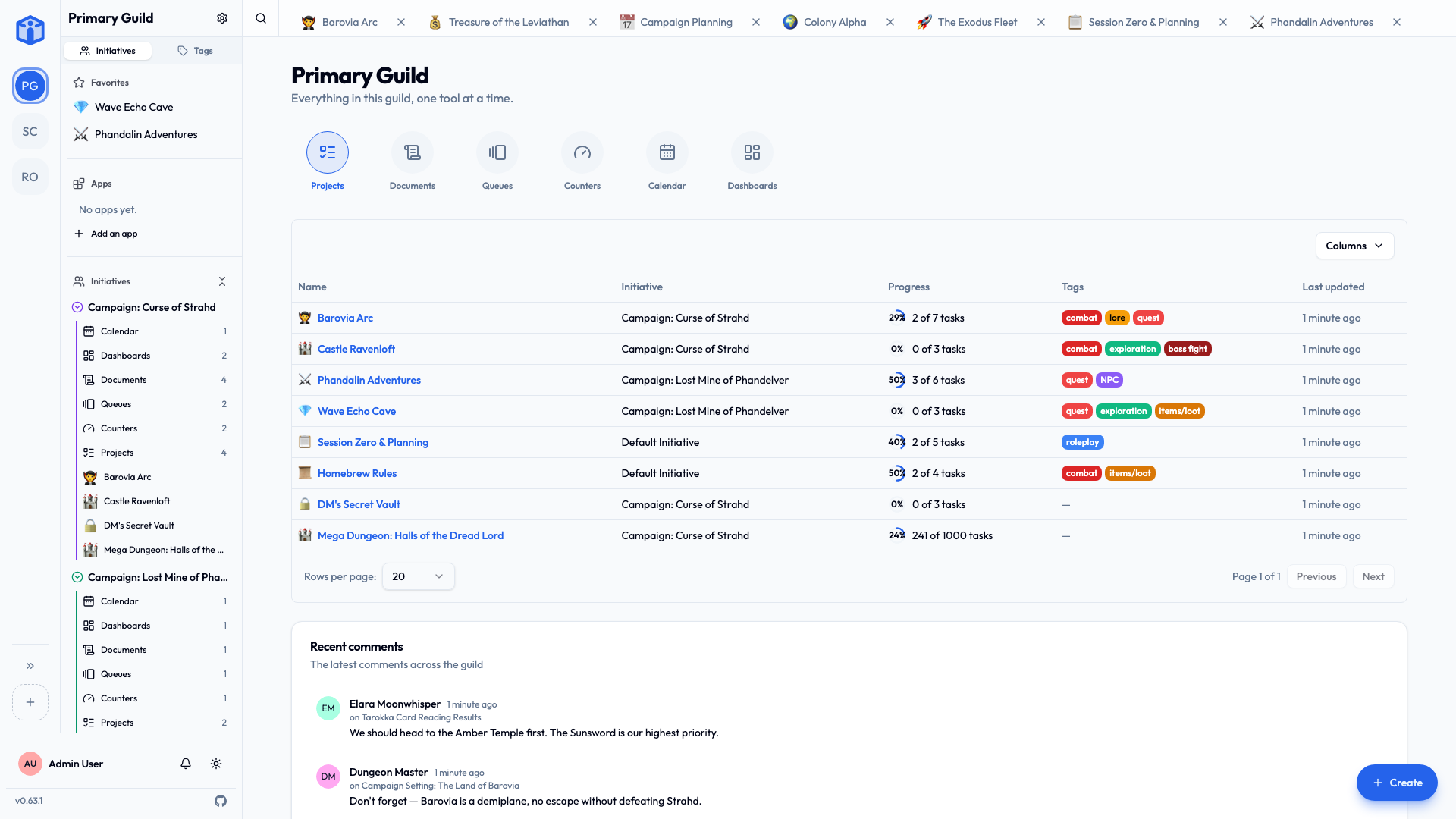
You can belong to many guilds at once. The guild rail runs down the far-left edge of the screen — a vertical strip of icons, one per guild. The highlighted icon is the guild you're in now, and the Initiative logo above the guilds takes you to your personal space.
- Click any guild's icon to switch to it.
- Switching changes everything else — the sidebar, initiatives, and projects — over to that guild.
- Each guild is independent. Work, people, and settings never cross between them.
Opening a guild lands you on its front page: a row of the guild's tools across the top, one circle each. Pick a tool and everything of that kind in the guild is listed underneath it — every project, document, calendar, queue, counter group or dashboard you have access to, wherever it lives — with the initiative it belongs to, its tags, and when it last changed. Click a name to open it, or an initiative to go there instead.
Only the tools your initiatives actually use appear, so a guild that doesn't run queues never shows a Queues circle. The tool you're looking at is part of the address, so you can bookmark or share the view you're on.
Two guilds at once
Open Initiative in two browser tabs and you can have each tab in a different guild — handy if you're juggling, say, a work team and a side project.
Inviting people (administrators)
Guild administrators bring new people in with invite links.
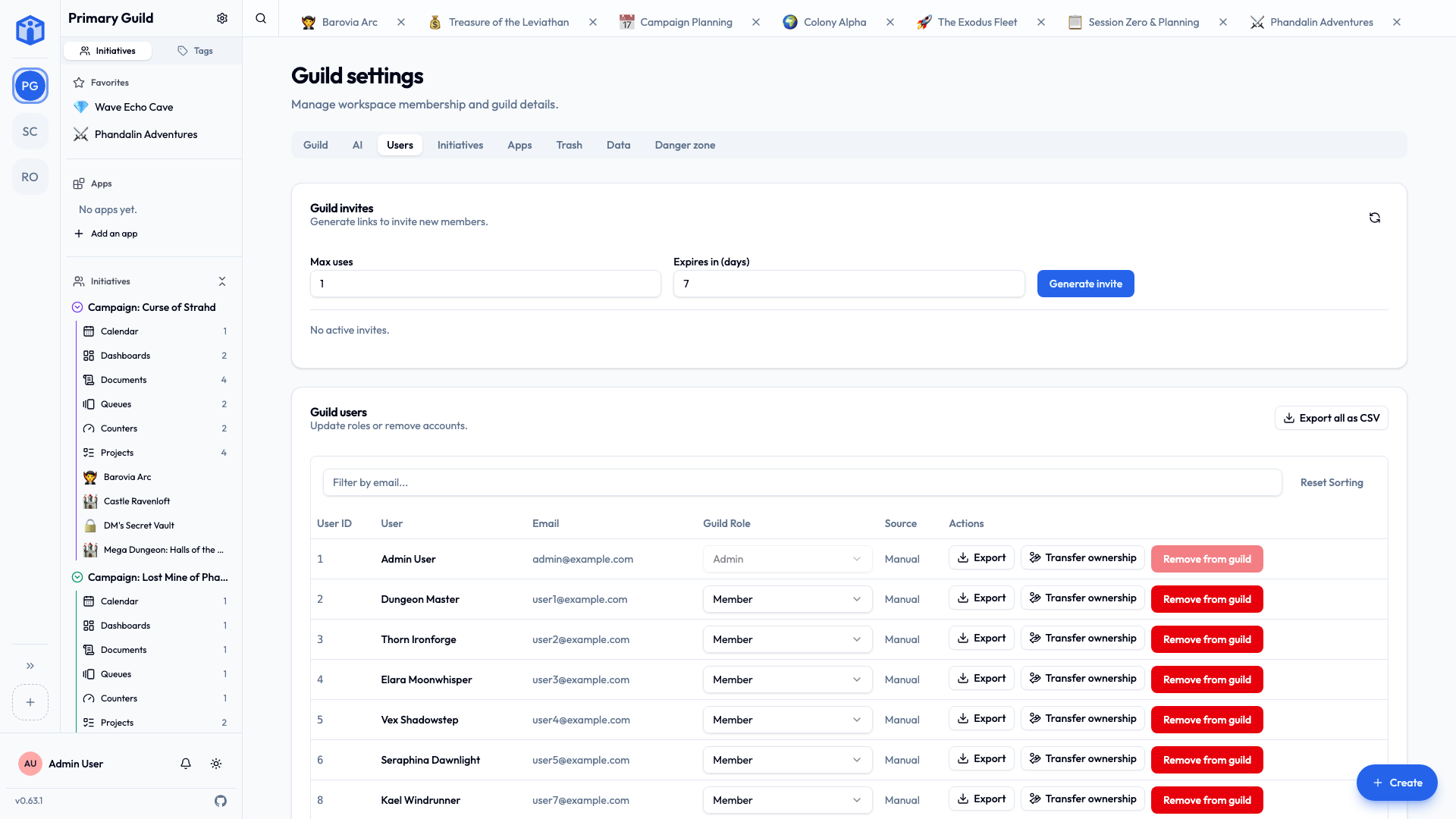
- Go to Guild settings → Users.
- Create an invite link.
- Optionally set limits:
- Max uses — how many people may join with this one link.
- Expires in (days) — when the link stops working.
- Copy the link and share it however you like (email, chat, etc.).
Anyone who opens the link can join the guild after signing in or creating an account.
Member roles
Inside a guild there are two roles:
| Role | What they can do |
|---|---|
| Member | Take part in the initiatives and projects they're added to. |
| Admin | Everything a member can do, plus manage the guild: members, invites, initiatives, settings, and more. A guild admin can see and manage everything in their guild. |
Administrators can promote a member to admin, or step a member back down, from Guild settings → Users.
Guild admin is not the same as the app's owner
Being an admin of your guild gives you full control of that guild — but not of the whole server or other people's guilds. Server-wide roles are a separate thing, covered in Platform roles.
Guild settings (administrators)
Open Guild settings from the sidebar (or the guild rail). You'll find tabs for:
- Guild — the name, description, and icon. (Icons should be a square image, up to 512 KB.)
- Users — members, their roles, and invite links.
- Initiatives — create and manage the guild's initiatives.
- AI — optional AI settings for the guild (see AI features).
- Trash — recently deleted items, which you can restore.
- Danger zone — sensitive actions, including deleting the guild.
Trash and retention
When something is deleted, it isn't gone immediately — it goes to the guild's Trash, where an admin can restore it. You can set how long items stay before they're cleared for good (a number of days, or never auto-purge to keep them indefinitely). This is your safety net for accidental deletions.
The danger zone
The Danger zone holds actions that are hard or impossible to undo — most importantly, deleting the guild. Deleting a guild permanently removes everything in it: initiatives, projects, tasks, documents, and members. To prevent accidents, you'll be asked to confirm carefully (including re-entering details). Only do this if you're certain.
For the technically minded — what guild deletion does
Deleting a guild removes its isolated database area and the database roles tied to it, and cleans up the shared records that connect people to it (memberships, invites, single-sign-on mappings, access grants). It's thorough and final. If you only want to step back from a guild without destroying it, leave it instead (from the guild rail) — that just removes you.
Leaving a guild
Don't want to be in a guild anymore? On the guild rail, open the guild's menu and choose Leave guild. This removes you only — the guild and everyone else carry on. If you're the last administrator, you'll need to promote someone else to admin first, so the guild isn't left without anyone in charge.
Related
- Initiatives — organizing work inside a guild.
- Sharing & access — who can see what.
- Security & privacy — how guilds stay separate.