Platform roles
Initiative keeps two role systems separate, and it's worth knowing which is which:
- Guild roles (admin / member) govern a single workspace. Covered in Working with guilds.
- Platform roles govern the whole server — every guild, every user. That's this page. To avoid clashing with the guild "admin" role, the platform tier below owner is called operator.
Platform roles are managed by the owner (and, for some actions, operators) from Settings → Platform and the Admin dashboard.
The ladder
Platform roles form a five-rung ladder, each rung adding to the one below it:
| Role | What it can do |
|---|---|
| Member | Standard access to their own guilds. No server-wide privileges. This is everyone by default. |
| Support | Read-only visibility across the platform (users, guilds, audit), and can request time-bound access to a guild to help with an issue. |
| Moderator | Everything Support can do, plus user management (suspend/reactivate) and content moderation. |
| Operator | Manages users, guilds, and roles platform-wide, has cross-guild access (via break-glass), and approves access requests. |
| Owner | Full control, including server-wide configuration (single sign-on, email, branding, AI). The only role that can change configuration. |
Capabilities, not just titles
Under the hood, each rung maps to a set of capabilities, and features are gated on the capability rather than the role name. The practical upshot is what the table describes — but it means the model is precise about what each role may do, not just who outranks whom.
The owner
The first person to register on a new server becomes the owner. The owner is the only role that can change app-wide configuration, so:
Never leave the server without an owner
Don't demote or delete the last owner-level account. Initiative guards against removing the final configuration-holder, but plan your administration so there's always someone who can manage settings.
Managing platform users
From Settings → Platform → Users (or the Admin dashboard → Users) you can:
- Promote / demote a user's platform role.
- Reset a user's password (sends them a reset email).
- Reactivate a deactivated account.
- Export the user list as CSV.
- Delete a user, choosing how thorough it is:
- Deactivate — can't sign in; data preserved; reversible.
- Anonymize — personal details removed; their content remains as "Deleted user"; not reversible.
- Hard delete — everything removed, including authored content; not reversible.
Before a destructive delete, Initiative makes you resolve blockers — for example, transferring projects the user owns, or promoting a replacement where they were the last admin — so nothing important is orphaned.
Cross-guild access: break-glass and time-bound grants
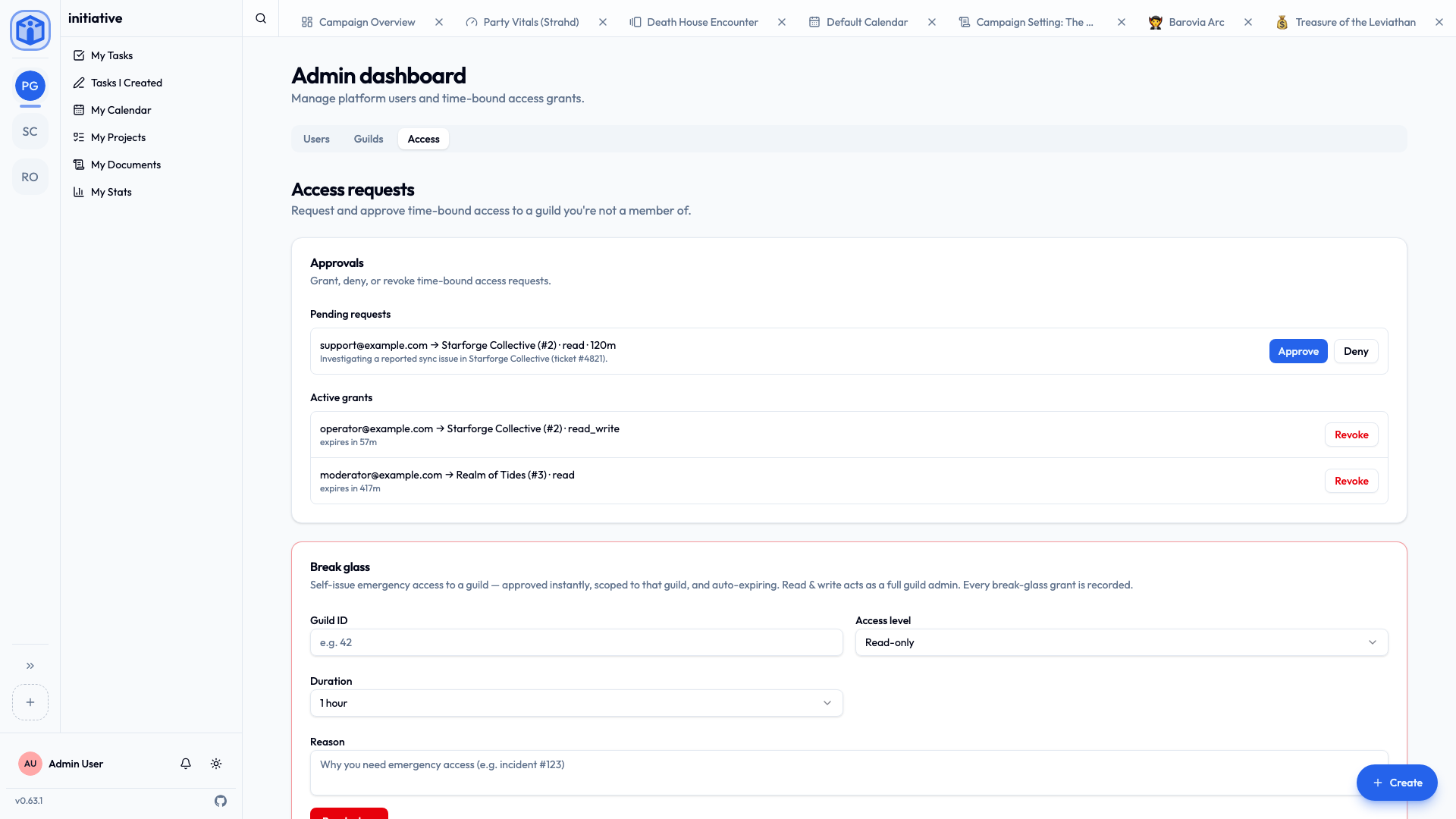
A core principle of Initiative is that no one has a standing back door into guilds they don't belong to — not even platform operators. When platform staff genuinely need to reach a guild's data (to investigate a problem, say), they use explicit, time-bound, recorded access instead. You manage this from Settings → Access (the access-requests page).
There are two paths:
- Request and approve (Support and Moderator). Someone requests scoped access to a guild — read-only by default, or read-and-write — for a chosen number of hours, with a reason. An approver (Operator/Owner) grants or denies it, and it auto-expires. A read-write grant can edit existing content, but not author new material or manage members.
- Break glass (Operator and Owner). For urgent situations, an operator can self-issue an emergency grant to a guild — approved instantly, scoped to that guild, expiring automatically. A read-write break-glass grant acts as a full guild admin for its window. Every break-glass grant is recorded, so the access is auditable.
Why it's built this way
Having no permanent cross-guild bypass means a compromised operator account can't silently read every group's data — privileged access has to be deliberately taken, is scoped and short-lived, and leaves a record. This is a deliberate security stance, explained further in How your data is kept separate.
Guild storage limits
The owner can set a maximum storage size per guild from Settings → Platform → Guilds. See File & object storage.
Related
- Configuration — foundational settings.
- Working with guilds — the per-guild admin role.
- How your data is kept separate — the access model behind all of this.