Tools
Beyond projects and documents, each initiative can use a few extra tools: a calendar, queues, counters, and dashboards. They're optional — there if your group needs them, out of the way if it doesn't. You'll find them in the sidebar under the initiative, once your role allows it.
Most groups don't turn any of these on for a while. Add one when a real need shows up: a shared calendar when scheduling starts to sprawl, a dashboard when someone asks how the work is going.
Bulk-edit who can access them
You can select several events, queues, or counters in a list view and update who can see or edit them all at once — the same bulk access editing available for projects and documents. See Sharing & access.
Calendar & events
The calendar is for things that happen at a time: meetings, sessions, deadlines, performances.
Create an event and you can set:
- Title, description, and location (or a link).
- Start and end times, or mark it all day.
- A color to tell event types apart.
- Attendees — the people invited.
- A recurrence if it repeats (same options as recurring tasks).
RSVPs and reminders
Invited people can respond — Accepted, Declined, Tentative, or leave it Pending — so you can see who's coming. Each person can also set a reminder (at the start, or minutes/hours/days before) so the event doesn't sneak up on them.
The calendar shows your events by day, week, month, year, or as a list, and you can import and export events as standard .ics files to sync with other calendar apps.
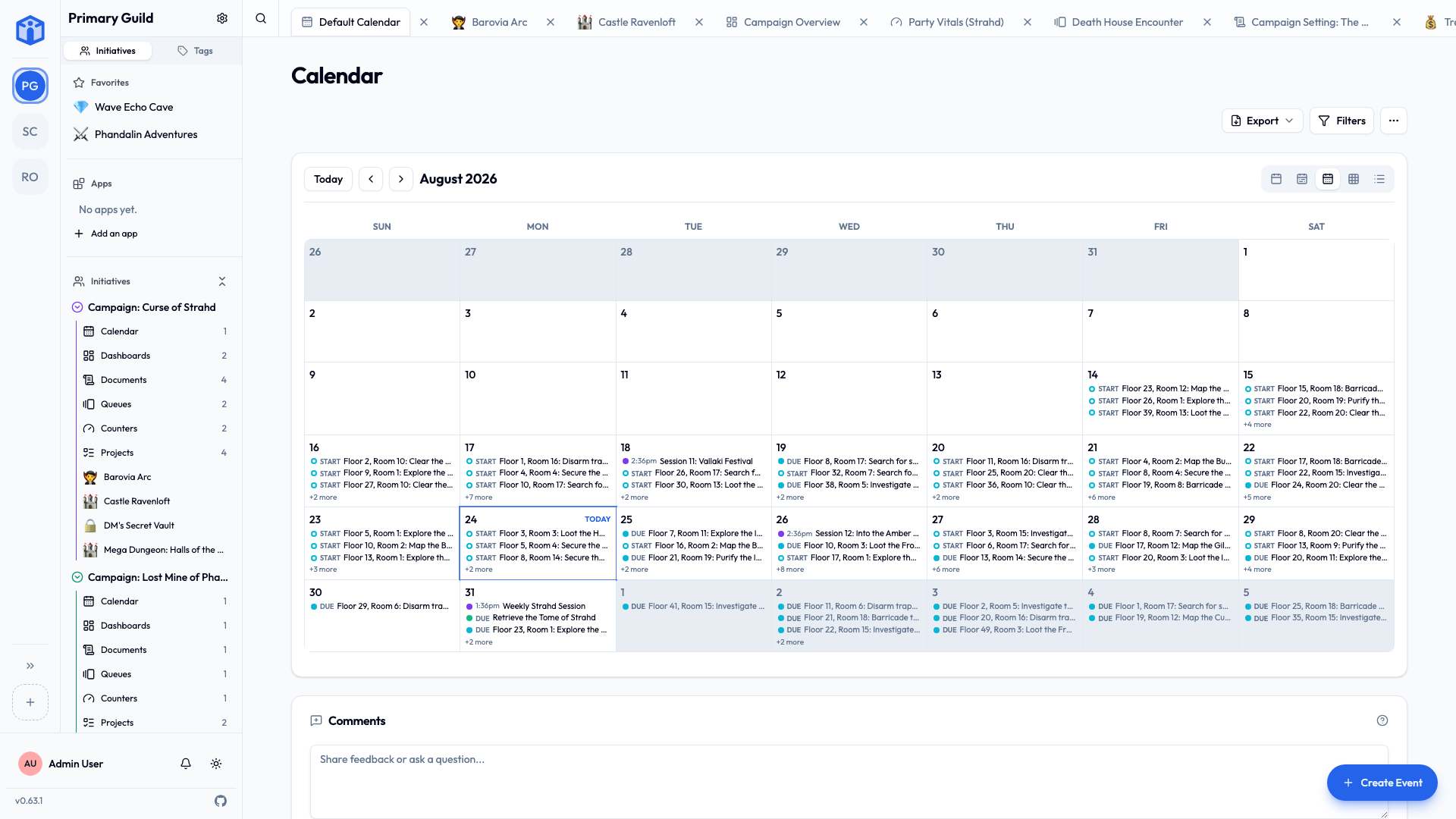
See every event in one place
Your personal My Calendar gathers events and dated tasks from across all your guilds, so you get one combined view of everything on your plate.
Queues
A queue keeps track of whose turn it is. It's ideal for anything that takes turns or rotates — an on-call roster, a speaking order, a chore wheel, who's opening the shop this week, turn order in a game.
A queue holds items (often people), and each item can have:
- A label and a color.
- A position in the order.
- Notes.
- Links to a member, documents, or tasks.
- A visible or hidden state.
You can Start the queue, step through Next turn / Previous turn, Hold and Release a turn, and track which round you're on. When it's done, Reset to begin again.
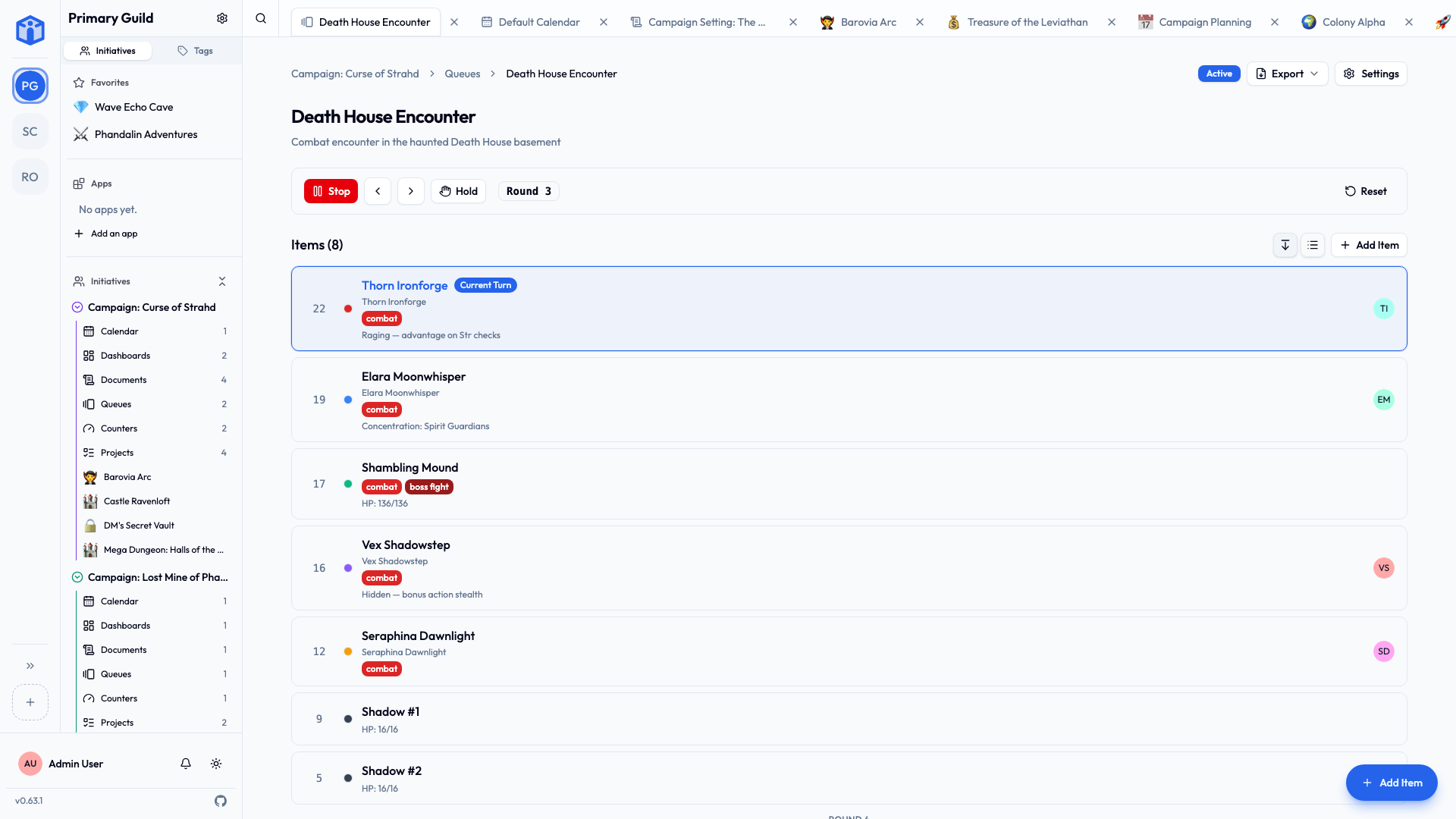
Counters
A counter tracks a number that goes up and down — a ticket tally, seats left, a budget, a score. Counter groups bundle related counters together (for example, one counter per table at a fundraiser).
Each counter can have:
- A current count, with optional minimum and maximum bounds.
- A step (how much each tap adds or removes).
- An initial value to reset to.
- A color and a display style: a plain number, a progress bar, or a segmented clock.
Increment, decrement, or reset a counter with a tap, reset all in a group at once, and use Focus mode for a big, full-screen view — handy when everyone's looking at one screen.
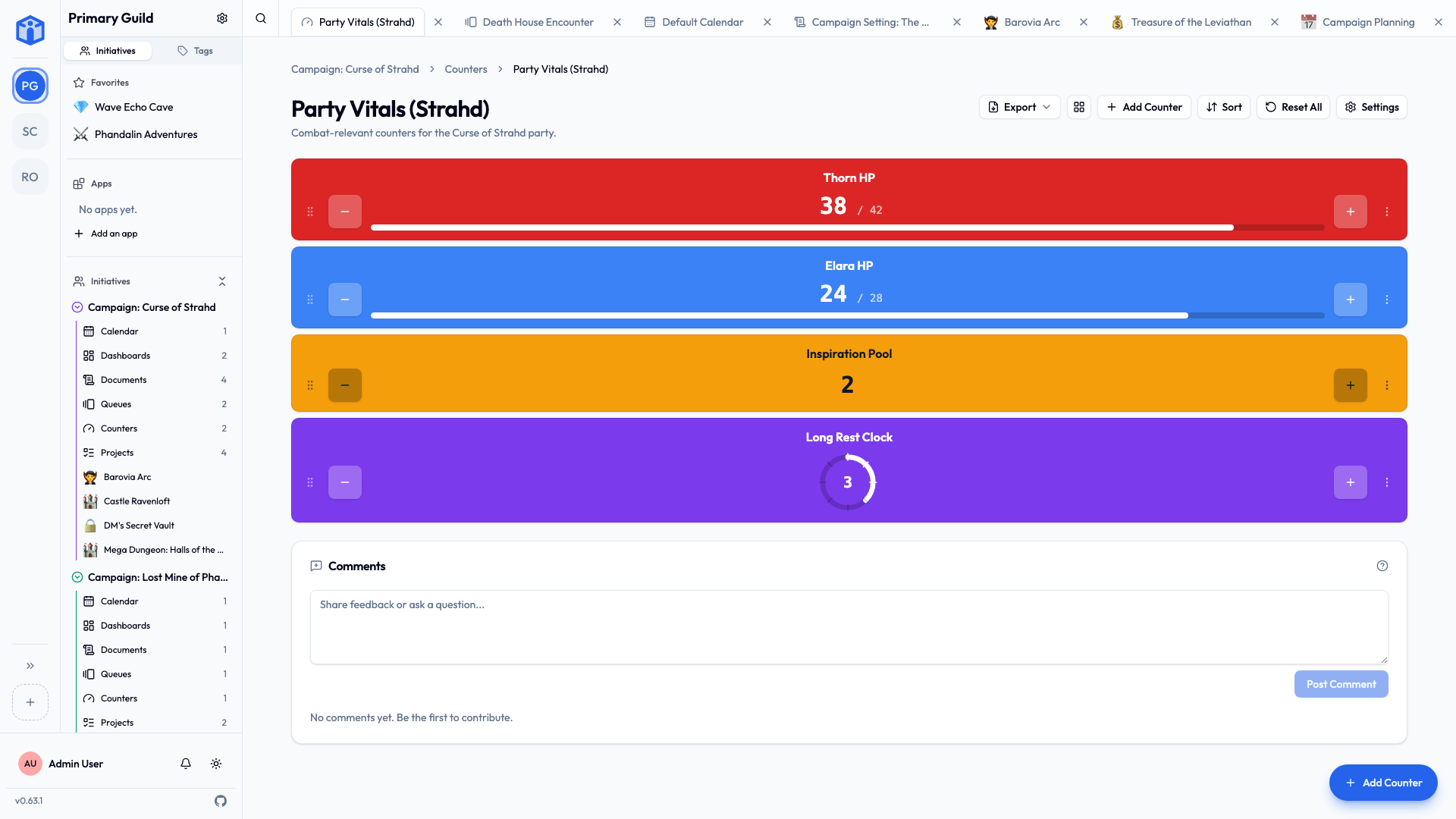
Dashboards
A dashboard puts the answer to "how are we doing?" on one screen. It's a canvas of tiles — charts, single numbers, timelines — each reading from your own data: task counts, project progress, upcoming calendar entries, a counter's value.
Dashboards only display. Nothing on one can be edited from it, so a dashboard is safe to leave open on a shared screen or hand to someone who only needs the overview.
Each tile shows you only what you're already allowed to see, so two people can open the same dashboard and correctly see different numbers.
You can build one from scratch, or add a ready-made one from the marketplace and adjust it — see Apps & the marketplace.
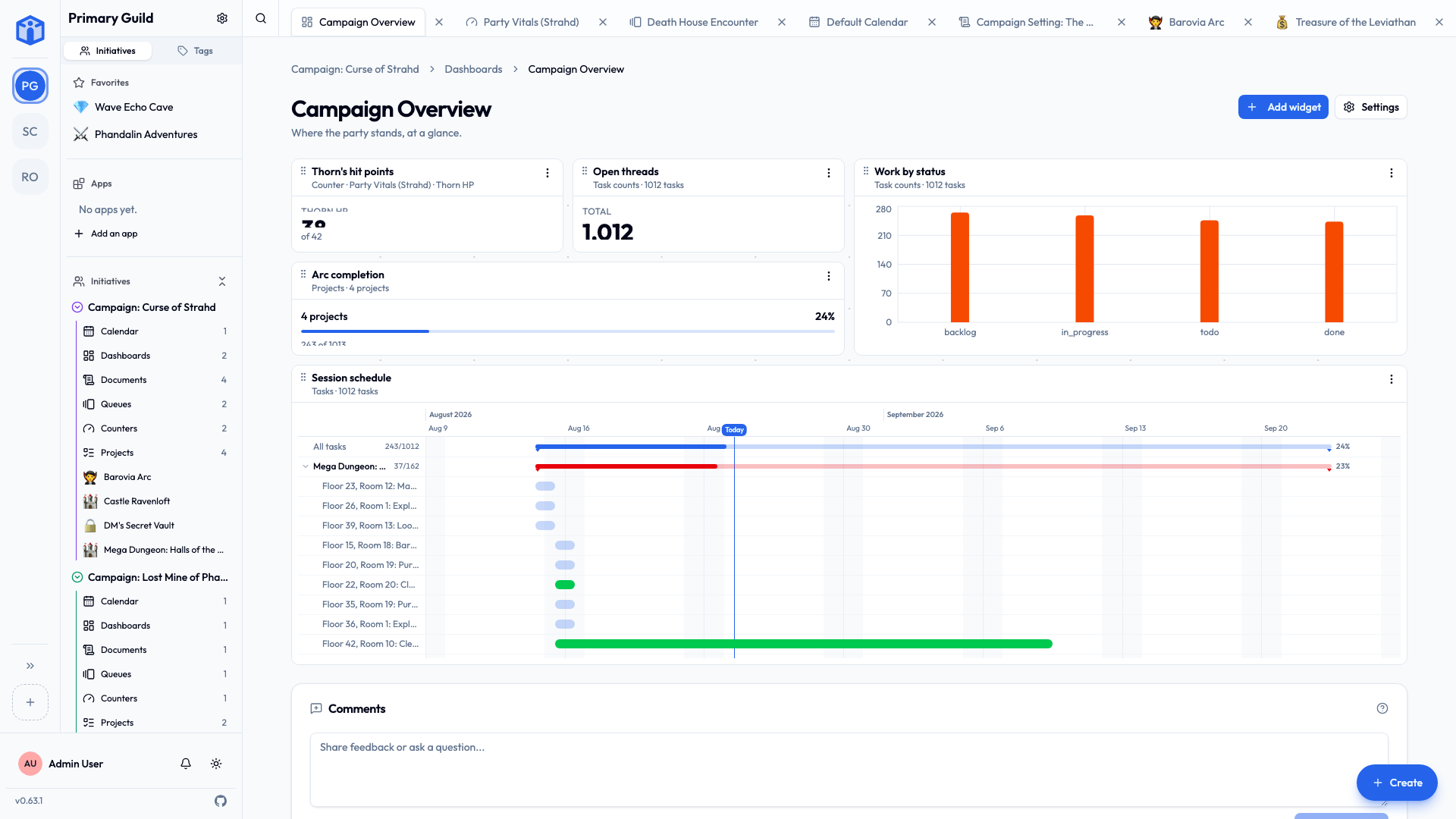
Related
- Initiatives — tools live inside an initiative, and roles control who can use them.
- Apps & the marketplace — ready-made dashboards and apps from other groups.
- Notifications — event invites and reminders.
- Your space — your combined calendar.