Search & shortcuts
The fastest way to get anywhere in Initiative isn't clicking — it's searching. This page covers the search box and the handful of keystrokes worth knowing.
Search (the Command Center)
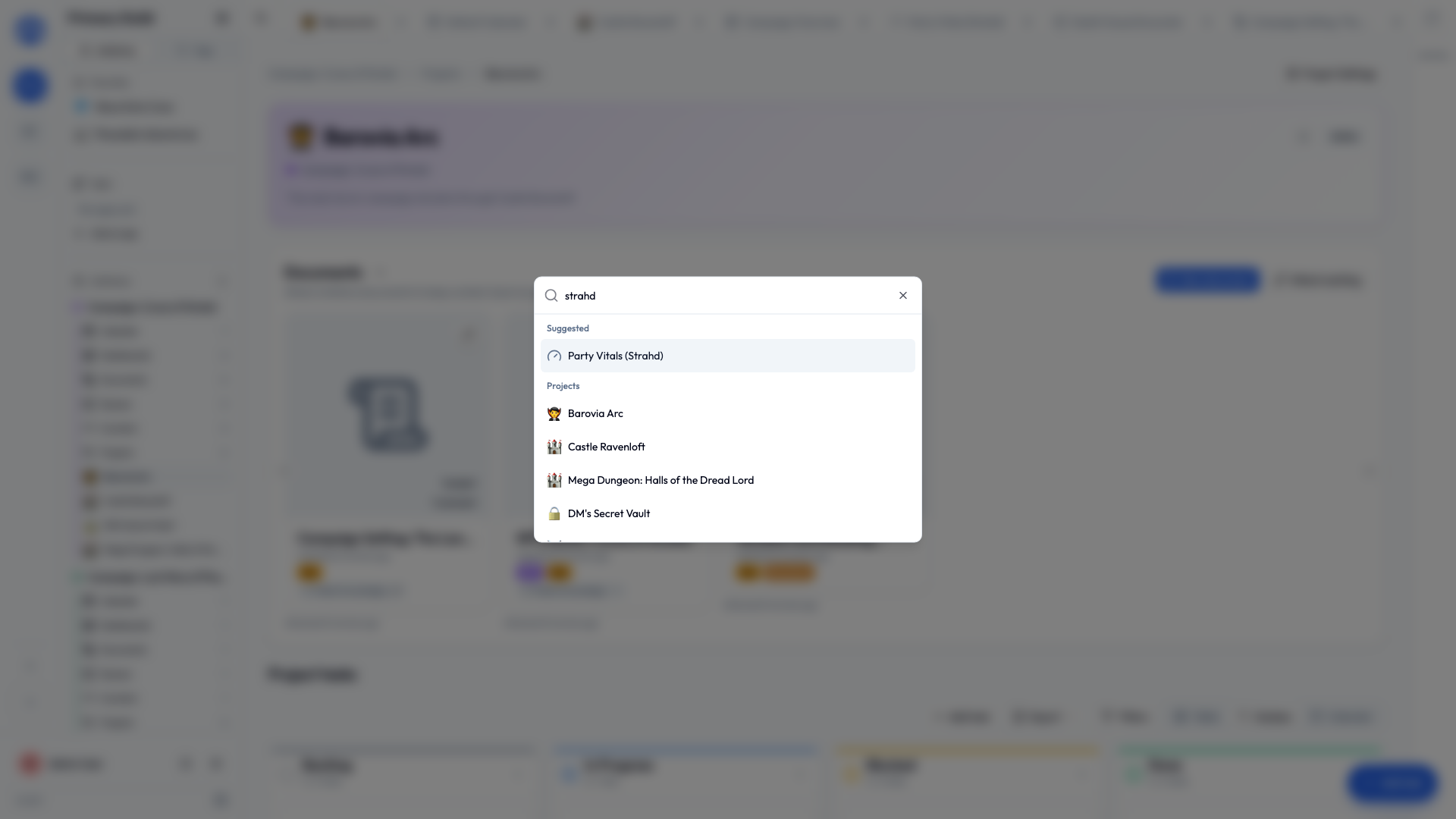
Press Cmd+K (Mac) or Ctrl+K (Windows and Linux) anywhere to open search. On a phone, a three-finger tap opens it too.
Start typing and Initiative looks across your current guild for:
- Projects, tasks, and documents by name.
- Queues and counter groups.
- Pages like My Tasks, My Calendar, and your settings.
- Quick actions, like "Add task" or "Add document."
Use the arrow keys to move through results and Enter to jump. It's usually quicker than navigating the sidebar — worth making a habit.
The recent-items tab bar
As you open projects, tasks, and documents, they stack up as tabs across the top, like a browser. Click a tab to return to it; close one when you're done. You can choose how many recent items it keeps (from 1 to 100) in User settings → Interface.
Handy keystrokes
| Keys | What it does |
|---|---|
| Cmd+K / Ctrl+K | Open search |
| Esc | Close the search box or a dialog |
| Shift + click a column | Add a column to the sort (Table view) |
There's a fuller list on the keyboard shortcuts reference page.
When in doubt, search
Can't remember which initiative a document is in? Don't go looking — press Cmd+K / Ctrl+K, type a few letters of its name, and go straight there.