Email
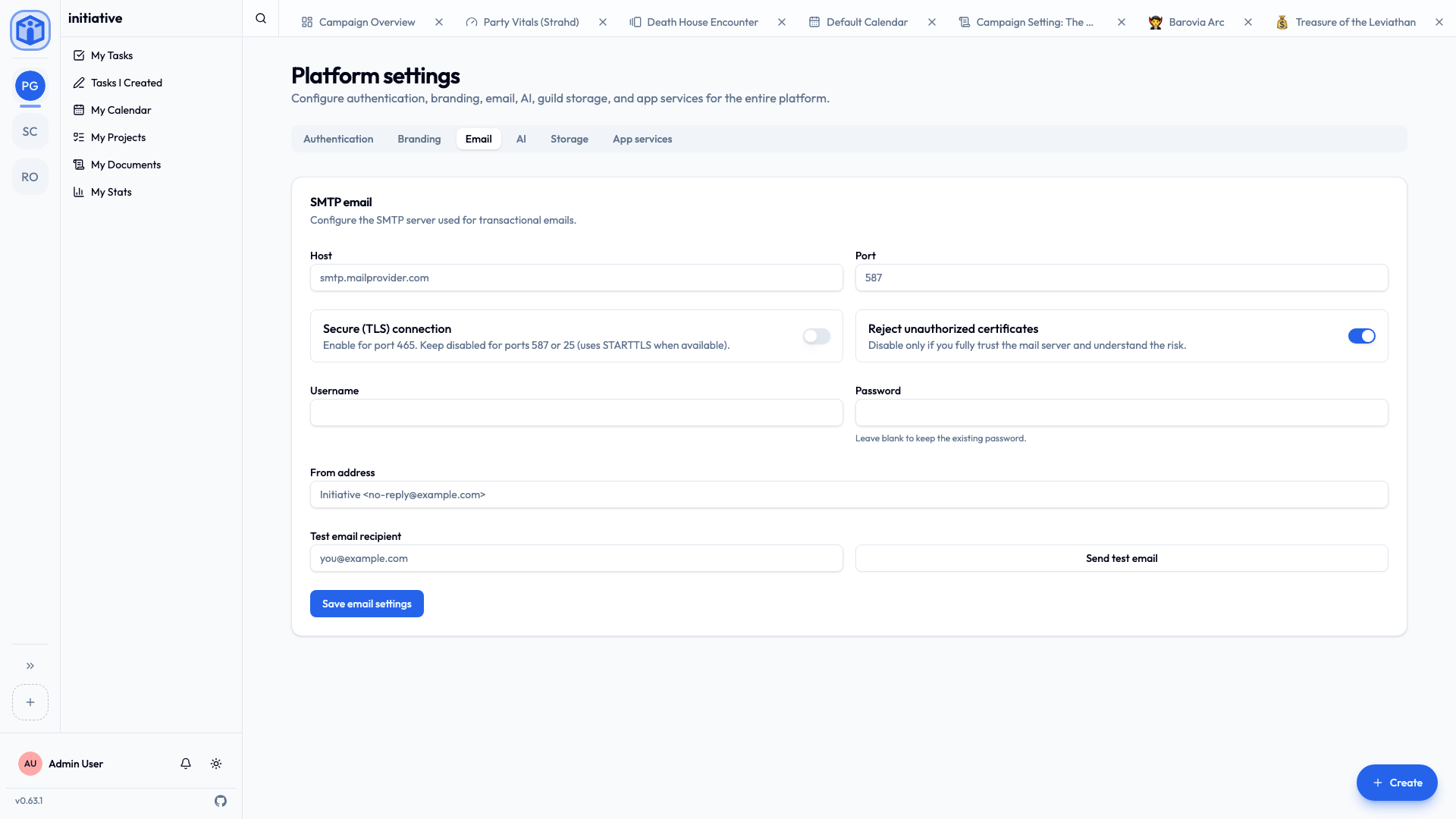
Initiative sends email for things like account verification, password resets, invitations, and the daily overdue-task digest. To enable that, point Initiative at an SMTP mail server. You set this up from Settings → Platform → Email as the owner.
No email = no email-based features
Without SMTP configured, Initiative still works, but it can't send verification links, password resets, or email notifications. In-app (bell) notifications keep working regardless.
What you'll need
Outgoing mail credentials from a mail provider — your own mail server, or a transactional email service (such as a typical SMTP relay). You'll need the host, port, a username and password, and a "from" address.
Settings
In Settings → Platform → Email:
| Field | Notes |
|---|---|
| Host | Your SMTP server, e.g. smtp.mailprovider.com. |
| Port | Commonly 587 (STARTTLS), 465 (TLS), or 25. |
| Secure (TLS) connection | Turn on for port 465. Leave off for 587/25 (they use STARTTLS when available). |
| Reject unauthorized certificates | Keep on. Turn off only if you fully trust the server and understand the risk (for example, a self-signed certificate on an internal relay). |
| Username / Password | Your SMTP credentials. (Leave the password blank when editing to keep the existing one.) |
| From address | The sender shown to recipients, e.g. Initiative <no-reply@example.com>. |
Test before you rely on it
Use the Send test email option (enter a recipient and send). If it arrives, you're set. If not, check the host/port/TLS combination first — that's the usual culprit — then the credentials.
Related
- Configuration — foundational server settings.
- Notifications — what gets emailed, from the user's side.
- Push notifications — the mobile equivalent.