Notifications
Initiative can let you know when something needs your attention — you were assigned a task, someone mentioned you, an event is coming up. You're in full control of what you're told about and where.
The three channels
Notifications can reach you in three ways:
| Channel | What it is |
|---|---|
| Bell | The in-app bell icon. It always shows your notifications, no matter your other settings. |
| Messages to your inbox. | |
| Mobile app | Push notifications on your phone (needs the app, and permission). |
The bell is always on. Email and mobile are yours to switch on or off, per category.
Choosing what you hear about
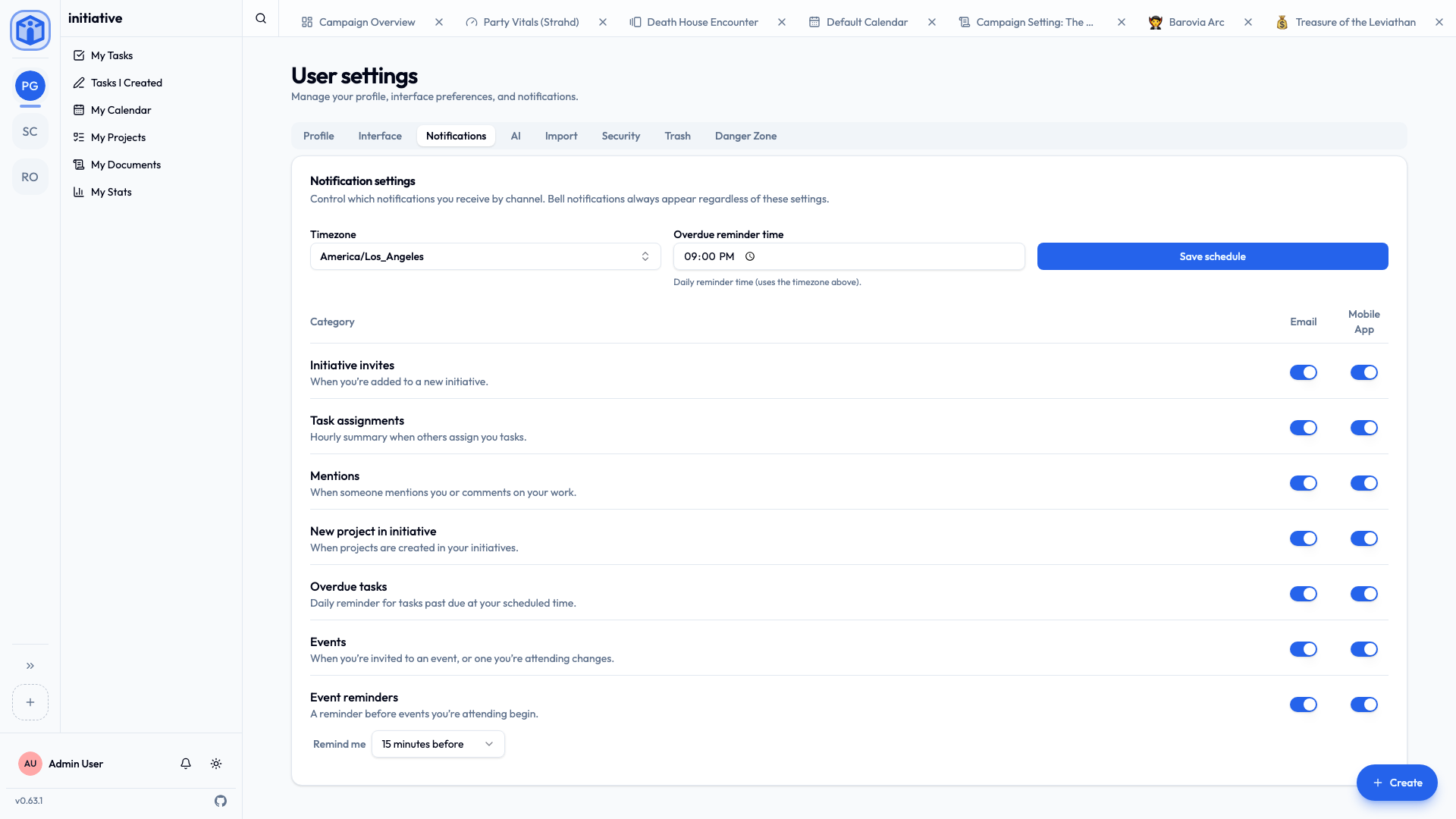
Go to User settings → Notifications. You'll see a grid: one row per category, with an Email and a Mobile App toggle on each. Turn on only what's useful to you.
The categories are:
| Category | You're notified when… |
|---|---|
| Initiative invites | You're added to a new initiative. |
| Task assignments | Someone assigns you tasks (sent as one summary, not one-by-one). |
| Mentions | Someone @mentions you or comments on your work. |
| New project in initiative | A project is created in one of your initiatives. |
| Overdue tasks | A daily reminder of what's past due, at a time you choose. |
| Events | You're invited to an event, or one you're attending changes. |
| Event reminders | Shortly before an event you're attending begins. |
Timing
A couple of categories are about when, not just whether:
- Task assignments arrive as one summary once the dust settles: Initiative waits until nothing new has been assigned to you for a few minutes, so a batch of tasks reaches you as a single message rather than a stream. If assignments keep arriving, the summary is sent anyway within half an hour. Email and mobile follow the same schedule, so you never get the same news twice at different times.
- Overdue tasks arrive as one daily digest at a time you set, in your timezone. Set both on the same Notifications page.
- Event reminders can be set per event — at the start, or a chosen number of minutes, hours, or days before.
Set your timezone
Daily digests, due dates, and recurring-task math all use your timezone. Initiative guesses it from your browser when you sign up; if it's wrong, fix it in User settings → Profile.
Turning on mobile push
To get push notifications on your phone:
- Install the mobile app and sign in.
- In User settings → Notifications, choose Enable push notifications.
- Allow notifications when your phone asks.
If push shows as Blocked, your phone's system settings are blocking the app — open your device settings, find Initiative, and allow notifications there.
Related
- Your space — where your tasks and events gather.
- Profile & preferences — your timezone and other settings.