Apps & the marketplace
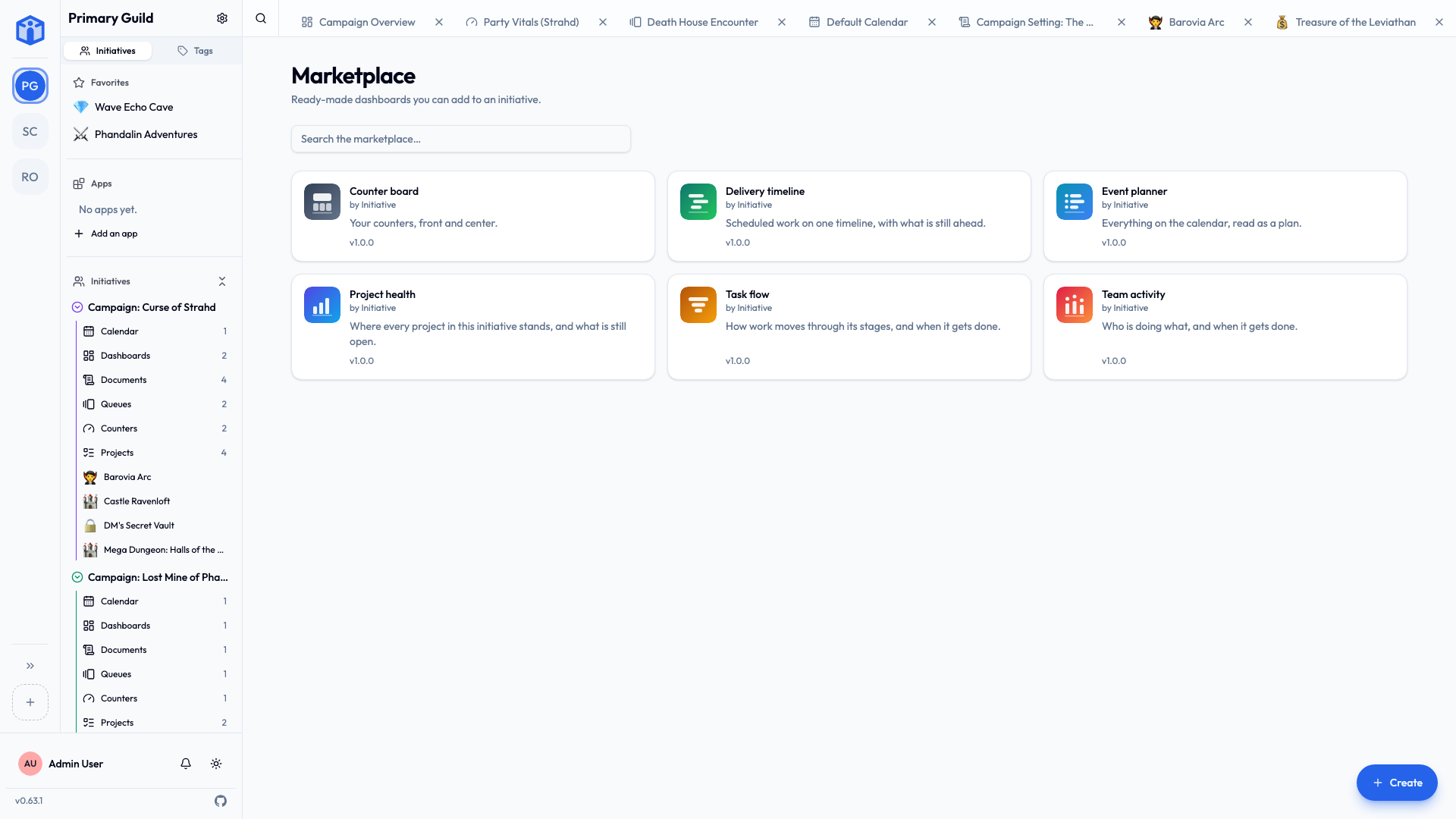
The tool your group needs has usually been needed before, by a group with the same problem. The marketplace is where those tools live: ready-made dashboards and apps you can add to your workspace in a couple of clicks, without a developer and without waiting for a new version of Initiative.
Your marketplace holds the listings that ship with Initiative, plus any that the person running your server has added and approved. It isn't an open upload pool — nothing reaches your marketplace without them putting it there.
Open it from Browse the marketplace on your dashboards list, or from the Apps section at the top of the sidebar.
Two kinds of listing
| Dashboards | Apps | |
|---|---|---|
| What it adds | A screen of charts, numbers, and timelines | Something the whole guild shares |
| Where it goes | Into one initiative | Into the guild |
| Who can add it | Anyone who can create dashboards in that initiative | Guild admins only |
Both are browsed the same way: search, open a listing to read what it does, then add it.
Adding a dashboard
A dashboard displays your data on one canvas — task counts, project progress, upcoming calendar entries, counters. Dashboards are read-only by design: nothing you see on one can be edited from it.
- Open the listing and choose Add to an initiative.
- Pick the initiative it should live in.
- Give it a name — the listing's name is filled in, and you can change it now or later.
It then appears under that initiative's Dashboards, exactly like one you built yourself. You can rename it, tag it, share it, and delete it like any other tool.
Don't see any initiative to choose?
You can only add a dashboard where you're allowed to create one. If the list is empty, ask an initiative manager to give your role the dashboard permission — see Initiative roles.
Previews
A listing's page can show a preview of the dashboard, drawn with sample data so you can see the shape of it before you commit. What you add will show your group's real numbers instead.
Updates
When the publisher releases a newer version, the dashboard shows Version X available. Updating is a choice you make — nothing changes underneath you. If a listing needs a newer version of Initiative than your server is running, it says so rather than half-working.
Adding an app
An app adds something to the guild as a whole rather than to one effort — a shared surface, extra dashboard widgets, or a connection to a service your group already uses. Because it affects everyone, only guild admins can add or remove one.
- Switch the marketplace to the Apps shelf and open a listing.
- Choose Add to guild and name it.
- If the app needs setting up, it's marked Needs setup — open its settings to finish.
Installed apps appear in the Apps section at the top of the sidebar, above your initiatives, and are managed under Guild settings → Apps.
Setting an app up
Some apps need a credential before they can do anything — an API key, or a sign-in to another service. There are two kinds, and the difference matters:
- Guild credential — set once by a guild admin, used for everyone. Good for a shared account the whole group works through.
- Your account — each member supplies their own, and it's used only for them. Your credential is yours; other members can't see or use it.
Each connection shows which service it uses and what it's allowed to do there, so you can decide before you supply anything.
Turning an app off, and removing it
- Turn off hides an app from everyone while keeping its setup. Turn it back on and it picks up where it left off. Disabled apps stay visible in Guild settings → Apps, which is where an admin turns them back on.
- Remove takes it out of the guild entirely. Anything it created moves to the Trash, where it can still be restored during the retention window. Every credential it held — the guild's and each member's — is deleted, and the app is told to stop using them.
Where listings come from, and what they can reach
Every listing in your marketplace got there one of two ways:
- It ships with Initiative — part of the built-in catalog, credited to Initiative. That credit can't be claimed by anything else.
- Your platform owner added it — the person who runs your server chose that listing and published it to your deployment. If you run Initiative yourself, that person is you.
There's no third way in. Anyone can write a listing, but reaching your marketplace is a decision your platform owner makes, one listing at a time. See Publishing your own listings.
Every listing also shows who published it — on the card, on its page, and in the dialog where you add it — so the question is answered at the moment you're deciding.
Two things stay true whatever you install:
- Your access rules still apply. A dashboard shows you only the data you could already reach — the same guild, initiative, role, and sharing checks as everywhere else. Two people looking at the same dashboard can correctly see different numbers.
- Widgets run in a sandbox. Marketplace widgets run in an isolated runtime that can only return something to draw. If one misbehaves, that tile shows an error and the rest of the page carries on.
Related
- Tools — the calendar, queues, counters, and dashboards built into every initiative.
- Sharing & access — who can see what you add.
- Publishing your own listings — for administrators adding listings to their server's marketplace.